

Summary
In this article, we aim to explain how to activate two-factor authentication (2FA) on your account, including installing an authenticator app, scanning the QR code, and completing the verification process. We will also clarify that after activation, you will need to enter a one-time verification code in addition to your password when logging into your account.
Step-by-Step Guide to Enable Two-Factor Authentication (2FA)
To activate two-factor authentication (2FA) on your DeltaFX account, follow these steps:
Download an Authenticator App
Install a 2FA app such as Microsoft Authenticator (Windows) or Google Authenticator (Android & iOS) on your device.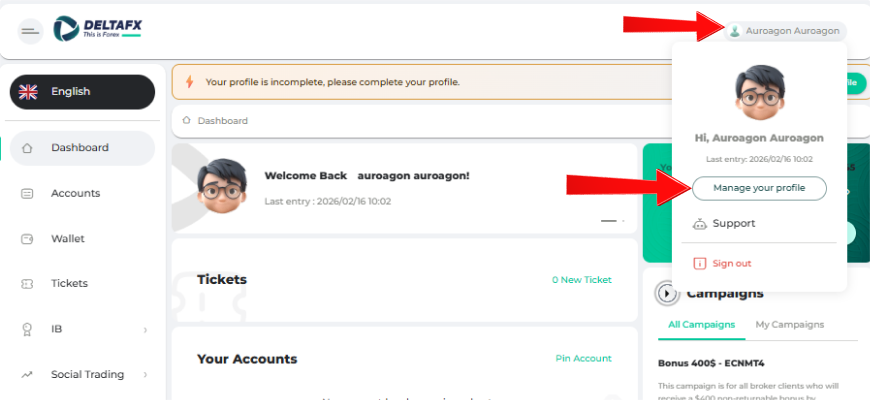
Access Your DeltaFX Profile
Log in to your DeltaFX account, click your profile in the top-left corner, and select Manage Profile.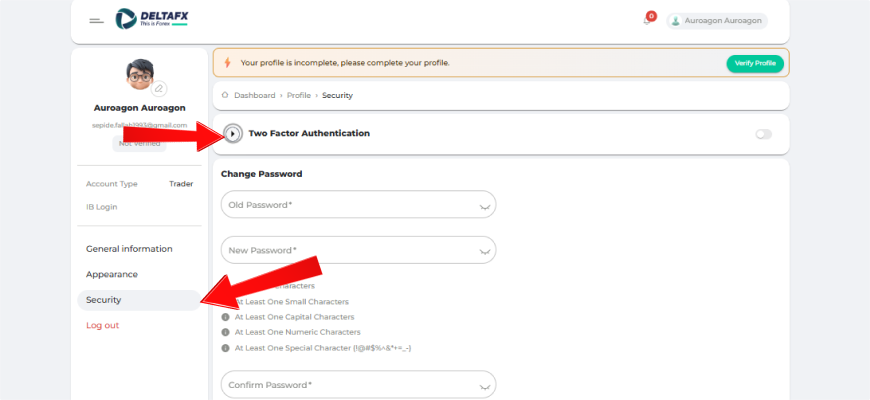
Go to Security Settings
Choose the Security section, then click Enable Two-Factor Authentication.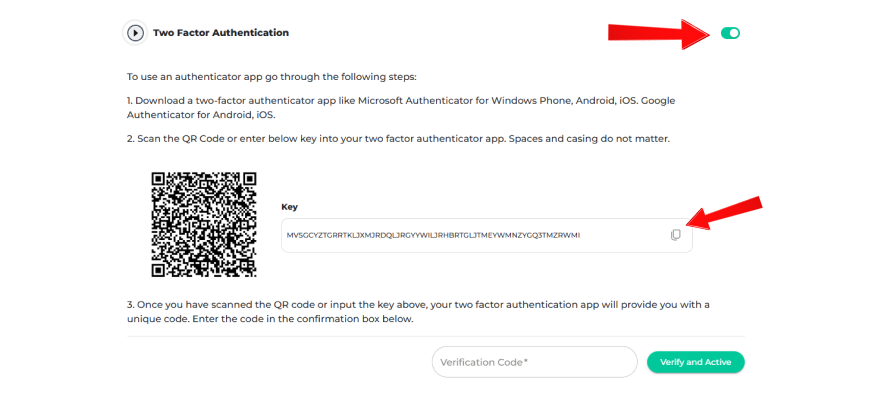
Scan QR Code or Enter Key
Scan the displayed QR code with your authenticator app OR
Copy the provided key and enter it manually into your 2FA app.
Enter Verification Code
Your authenticator app will generate a unique one-time code. Enter this code in the designated field on DeltaFX and click Confirm & Activate.
2FA Activation Complete
Two-factor authentication is now enabled. From this point onward, logging in will require:
Your password
The one-time code generated by your authenticator app
For a visual walkthrough, you can watch the tutorial video provided on the DeltaFX platform.
Other tutorials related to the DeltaFX user panel
Broker registration tutorial -> Broker authentication tutorial -> Activating two-step authentication -> Comprehensive tutorial on depositing to the broker -> Broker account opening tutorial -> Broker withdrawal tutorial -> Broker support tutorial
Video tutorial on two-step authentication in Delta FX broker
Support: If you encounter any issues during the process, contact the DeltaFX support team for assistance.